Zip Extractor - UnZIP & UnRAR
- 4.4
- Rating
- 5.00M
- Installs
- Free
- Price
 Analysis by App-foxy
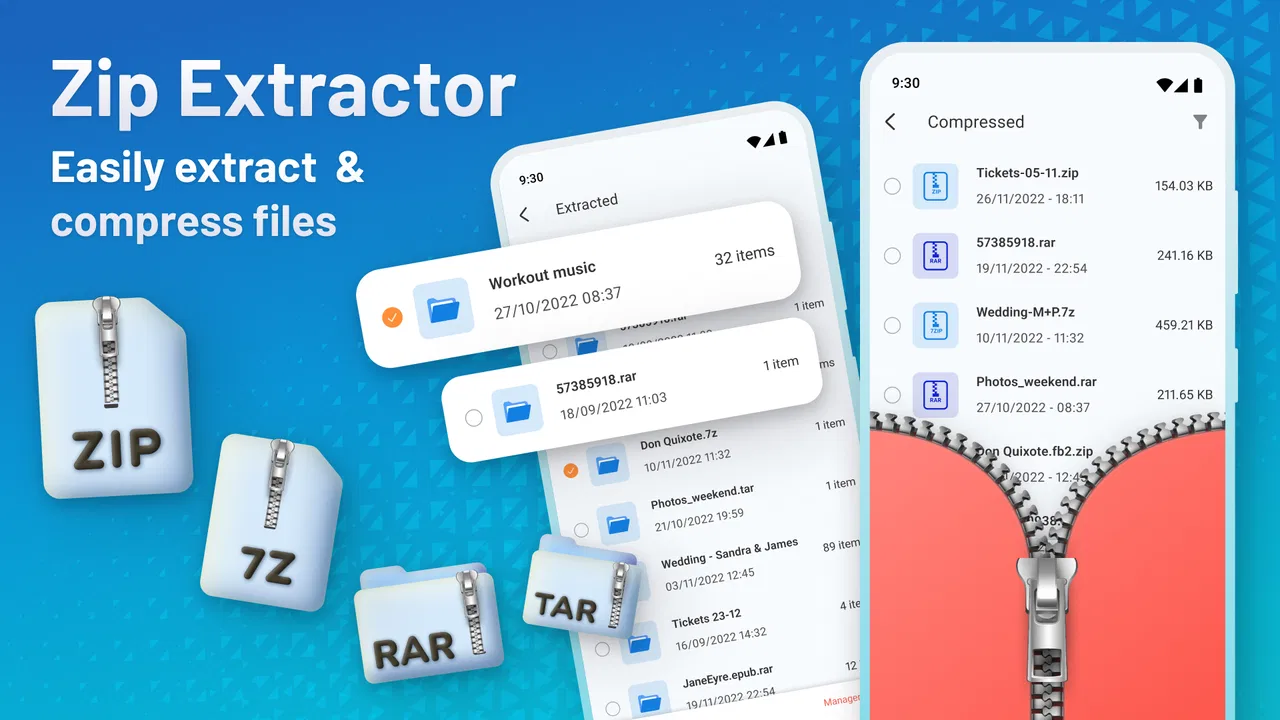
When I need to open a compressed attachment on an Android phone, the difficult part is rarely the archive itself. The real nuisance is finding the file, choosing the right extraction location, and making sure the contents are still easy to use afterward. Zip Extractor - UnZIP & UnRAR approaches that small but common problem as a focused tools app from TarrySoft. I tested it with the mindset of someone moving files between messaging apps, cloud storage, downloads, and local folders, rather than treating it as a one-tap novelty.
My overall impression is that it is most useful when your phone’s built-in file manager does not handle a particular archive comfortably. It gives compressed files a dedicated place in your workflow, supports both extraction and compression, and keeps the basic purpose clear. It is free to install, available for Everyone, and currently listed as version 3.3.4. Optional purchases range from $0.99 to $99.99 per item, so I would check the purchase screen carefully if you want more than the basic experience.
From receiving an archive to opening the files
I find that the most useful way to judge an archive tool is to follow the file beyond the extraction screen: where it lands, who needs to open it next, and whether it can be handed back cleanly. In a shared household, that means thinking about folders and recipients before tapping through. The next section looks at how those choices shape the everyday path from receiving an archive to opening its contents.
You May Also Like

 Blood Strike: 2.5 Anniversary
Blood Strike’s Loadouts Turn Every Drop Into a Tactical Gamble
A close look at Blood Strike’s custom loadouts: how fast access to signature weapons reshapes its battle royale rhythm, rewards preparation, and narrows the gap between fights.

 Pandora - Music & Podcasts
Pandora’s Music Is Easy to Start, but Harder to Recover
Pandora’s strength is its low-effort path from a seed to a station. Its weak spot is how much confidence it asks you to place in connection, setup, and quiet recovery.

 8 Ball Pool
 Is Built on Rivalries, Rematches, and Routine
A close look at the rivalries, rematches, shared routines, and unanswered safety questions that turn a quick pool match into a persistent mobile community.

 Samsung Music
’s Quiet Strength Is Playing What You Already Own
Its reach comes less from spectacle than from dependable access to a personal library. That simplicity is both the app’s strongest retention engine and its ceiling.

 AccuWeather: Weather Radar
AccuWeather Review: A Quick, Clear Forecast for Everyday Decisions
For everyday plans, the best forecast is the one you can understand quickly. AccuWeather makes rain timing, radar, and local conditions easy to act on, with a few trade-offs.

 Hill Climb Racing
Why Hill Climb Racing Still Turns Crashes Into One More Run
A tiny car, a bumpy hill and one more upgrade: Hill Climb Racing keeps resurfacing because its simple chaos makes every near-miss feel personal.
More From Our News Desk
View All News


The starting condition matters more than it seems
A typical job begins with a file that has arrived through a handoff: a document package from a colleague, a group of photos, an exported project, or a collection of files downloaded from the web. Instead of opening each item separately, the sender has placed everything inside a compressed archive. That is convenient for the sender, but on a phone it can leave you wondering whether the archive can be previewed, where its contents will go, and whether the resulting files will be visible to another app.
This is where Zip Extractor - UnZIP & UnRAR makes sense. It is not trying to be a full document editor, cloud drive, or file organizer. Its role is narrower: help me unpack an archive or create one when I need to bundle files. That narrow focus is a strength because I can think about the file operation first, then pass the result to the app that actually handles the documents, images, audio, or other content.
The app sits in the Tools category, which feels accurate. I would not install it for entertainment or daily browsing. I would keep it available for those occasional moments when a compressed file becomes a practical obstacle. With more than five million installs and an average rating of 4.4 from roughly eighty-four thousand ratings, it has clearly found an audience among people who want a dedicated archive utility rather than relying entirely on whatever file manager happens to be preinstalled.
Finding the input without losing track of it
The first useful habit is to identify the archive’s current home before opening the extractor. If it came from a chat application, I check whether the file was downloaded locally or is still only visible inside that conversation. If it came from cloud storage, I make sure it is available to the phone rather than merely listed online. This small check prevents a common mistake: launching an extraction tool and assuming it can work with a file that has not actually been handed over to the device.
Once the archive is visible through the Android file-picking flow, the next decision is not simply “extract.” I think about the destination. For a one-off document, a temporary folder is sensible. For photos I plan to edit, a recognizable folder is better. For a group of files that another app must import, I choose a location that app can browse easily. The extraction step is only half the job; a poorly chosen destination creates more work later.
This is one of the app’s practical advantages over a very basic file manager: it puts the archive operation at the center of attention. I am less likely to confuse opening the compressed container with opening the files inside it. That distinction is especially helpful when an archive contains several nested folders or when the phone presents multiple similarly named downloads.
The extraction flow in everyday use
After selecting the archive, I treat the contents as a package that needs a controlled handoff. I look at the file name and destination before confirming, because extracting into a crowded download folder can make the result difficult to identify. If the archive contains a folder with its own name, I prefer keeping that structure intact. If it contains loose files, I use a dedicated destination so they do not mix with unrelated downloads.
The useful insight here is that extraction is also an organization decision. A fast tap can technically succeed while producing a messy result. I get a cleaner workflow by creating or selecting a folder based on the next action: “to read,” “to edit,” “to upload,” or “to share.” The archive utility does not replace that judgment, but it makes the mechanical part straightforward enough that I can focus on it.
For someone asking whether this handles more than ZIP files, the answer is reflected in its name and purpose: it is designed for ZIP and RAR work, including unzipping and unR AR-style extraction. I would still treat unusual archives cautiously and keep the original file until I have checked that the extracted contents open correctly. A successful extraction does not automatically mean every contained file is supported by the next app in the chain.
Checking the result before passing it on
Once the files are extracted, I do not immediately delete the original archive. I first open a few representative items. With a folder of images, I check that thumbnails appear and that the expected number of folders is present. With documents, I open one or two in the intended reader. With mixed content, I confirm that the folder structure has not made the files hard to locate.
This verification step is particularly valuable when the archive came from someone else. It separates two possible problems: an issue with unpacking and an issue with the file itself. If the archive extracts but a document still will not open, the extractor may have done its job and the problem may belong to the document format or the receiving app. Keeping that distinction clear saves time when troubleshooting.
Creating an archive for the return handoff
The reverse workflow is just as important. Suppose I have several files to send back, but sharing them individually would be slow or would scatter them across a conversation. I select the files I want to bundle, choose a sensible name, and create a compressed package. Before doing that, I remove temporary items such as duplicate downloads, preview images, or unrelated notes. Compression is not a substitute for sorting; it simply packages whatever I put into it.
A good archive name should tell the recipient what it contains without requiring them to open it immediately. I also avoid putting a whole cluttered download folder into the package. This is a non-obvious but important trade-off: the app can make bundling easy, yet the quality of the final handoff still depends on file selection and naming. A smaller, clearly organized archive is usually more useful than a large one that mirrors my phone’s messy storage.
When I send the finished archive through another app, the handoff changes ownership. Zip Extractor has completed the packaging, but the messaging, email, cloud, or sharing app now controls delivery. If the recipient reports a problem, I check whether the archive was created correctly and whether the transfer completed intact before repeating the compression step. This layered approach avoids blindly rebuilding the same file.
Where the handoffs create friction
The smoothest experience happens when the archive is already stored locally and the destination is obvious. Friction appears when several apps compete to open the same file, when a download has an unclear name, or when the file picker exposes many folders without explaining which one another app will use later. These are normal Android file-management issues, but they still affect how easy the extractor feels.
I also find that a dedicated archive app can add one more step compared with a modern file manager that already includes extraction. If your phone’s built-in tool opens ZIP files reliably and you rarely encounter RAR archives, installing another utility may not improve your routine. In that situation, the extra app is only worthwhile if its focused interface is easier for you to understand or if you regularly need compression as well as extraction.
Another point to consider is the purchase model. The app is free, but it includes in-app purchases from $0.99 to $99.99 per item. I would not assume every advanced convenience is part of the free experience. Before depending on it for repeated work, I would inspect which actions are available without payment and whether any purchase is optional for the way I intend to use it. That is more practical than discovering a restriction halfway through an urgent file transfer.
Who benefits most from this workflow
I think this app is a good match for students receiving course materials in a single archive, freelancers moving project assets between phone and computer, and families sharing batches of photographs. It is also handy for anyone who downloads templates, manuals, or collections of files and does not want to search for a separate desktop before opening them. The Everyone content rating makes it suitable for a broad audience, although the usefulness still depends on how comfortable the person is with folders and file handoffs.
A realistic example would be receiving a compressed set of travel documents in a messaging app. I download the archive, open it with the extractor, place the contents in a named folder, check the PDF and image files, and then share only the relevant document with a travel companion. If I later need to send an updated group back, I select the revised files, compress them into a clearly named package, and hand that archive to the messaging app. The value is not just opening the file; it is keeping the whole exchange understandable.
It is less suitable for somebody who needs a complete cloud-based file workspace, automatic synchronization, document editing, or sophisticated backup controls. I would also choose a more specialized solution for highly sensitive archives if I needed a clearly documented security workflow or advanced encryption controls. Zip Extractor is a practical file utility, not a replacement for every kind of storage and privacy tool.
How it compares with usual alternatives
The closest alternative is the file manager already installed on the phone. That option wins when it can extract the formats I receive, because it avoids switching apps and keeps files in one familiar place. Zip Extractor wins when the built-in manager is inconsistent, hides archive actions, or does not make compression and extraction equally clear. The choice is therefore less about which app is universally better and more about whether archive handling is a recurring gap in my current setup.
Desktop utilities remain better for large, complicated jobs involving many nested folders, extensive renaming, or careful inspection before extraction. A computer gives me a larger view and more precise control. The mobile app is better for the moment when the archive arrives while I am away from that computer and I need to read, check, or forward its contents immediately.
Cloud storage apps may be more convenient when the files already live online and need to remain synchronized across devices. However, they can make a simple local extraction feel like a longer route. I prefer Zip Extractor when the immediate goal is clear: unpack this archive here, inspect the result, or bundle these selected files for one handoff. I prefer cloud tools when the ongoing location of the files matters more than the archive operation itself.
Small habits that make it more reliable
I recommend keeping the original archive until the extracted files have been checked. I also use a destination folder named for the task rather than leaving everything in Downloads. These two habits make it easier to recover from a mistaken destination, compare the extracted result with the original, or repeat the handoff without asking the sender to resend the package.
For outgoing archives, I select files manually instead of compressing an entire folder without reviewing it. That reduces accidental sharing and produces a cleaner package. If the archive is meant for another person, I include a simple naming clue in the file name and avoid ambiguous versions such as several copies with nearly identical labels. The extractor handles the packaging, but these choices determine whether the recipient can use what I send.
I would also test the complete path before relying on it for an urgent transfer: receive, extract, open one file, create a small archive, and send it through the app I normally use. This reveals whether the file picker, destination folder, and receiving application cooperate on my particular phone. It is a better test than judging the utility only by whether one archive opens.
My final view after following the full path
Zip Extractor - UnZIP & UnRAR is a focused answer to a focused problem. I like it most when a compressed file interrupts an otherwise simple mobile task and I need a clear bridge from download to usable files. The developer, TarrySoft, has kept the concept easy to understand: extract archives when they arrive, compress selected files when they need to leave, and let other apps handle the content afterward.
The app’s strongest quality is not a flashy extra; it is the way it gives archive work its own place in a phone workflow. That helps me avoid mixing extraction with editing, sharing, or cloud storage. Its limitations are equally clear: file locations can still be confusing, built-in file managers may already cover the basics, and the in-app purchase structure deserves attention before regular use.
For occasional ZIP and RAR tasks, I would recommend trying it because the free entry point makes the decision easy. For people who already have a capable file manager and rarely handle archives, it may be unnecessary. My recommendation is strongest for anyone who repeatedly receives bundled files on Android and wants a dependable step between the incoming archive and the app where the contents will actually be used. It is most valuable when you treat extraction as a complete handoff workflow, not merely as a button that opens a folder.
Released on January 22, 2022, and supporting Android 7.0 and later, it remains accessible across a wide range of devices. With an average rating of 4.4 and around eighty-four thousand ratings, its reception is encouraging without being a reason to ignore your own needs. I would install it for practical archive handling, keep my folder choices deliberate, and move on to another tool when I need deeper desktop-style control.
FAQs for Zip Extractor - UnZIP & UnRAR
01What is Zip Extractor - UnZIP & UnRAR used for?
Zip Extractor - UnZIP & UnRAR is designed to help you open, browse, and manage compressed files on a mobile device. It can be useful for accessing ZIP and RAR archives received through email, messaging apps, cloud storage, or downloads. After extracting the contents, you can view supported files and organize them without needing a computer or a separate desktop archive utility.
02Which archive formats does Zip Extractor - UnZIP & UnRAR support?
The app is primarily intended for ZIP and RAR files, which are among the most common archive formats used for sharing documents, images, apps, and other collections of files. Support can vary depending on the version of the application and the device operating system, so users should check the app listing for the latest compatibility details. Password-protected archives may also require additional support.
03Can I create compressed ZIP or RAR files with this app?
Zip Extractor - UnZIP & UnRAR is mainly focused on extracting and opening compressed archives, rather than replacing a full file-compression suite. Depending on the version, it may offer options for compressing selected files into an archive, but RAR creation is often more restricted than ZIP creation because of format licensing and compatibility considerations. Review the available tools in the app before downloading if archive creation is essential.
04Can the app open password-protected or encrypted archives?
Some ZIP and RAR archives may be protected with a password, and the app can request that password when you try to extract them if the relevant format and encryption method are supported. It cannot bypass or recover a forgotten password, however. For security, avoid entering passwords into suspicious files and only open archives from sources you trust, especially when the archive contains executable or unfamiliar content.
05Is Zip Extractor - UnZIP & UnRAR safe and free to use?
The application can be convenient for everyday archive management, but users should download it only from the official Google Play Store or Apple App Store and review the listed developer, permissions, advertisements, and in-app purchase information. Free versions may include ads or feature limitations. Before extracting files, scan unfamiliar archives when possible and be cautious with files that request unusual permissions or attempt to install additional software.
Pros
- Supports common ZIP and RAR archive formats.
- Simple interface makes extracting files easy.
- Can browse archive contents before unpacking.
- Useful for opening downloaded compressed attachments.
- Lets you organize extracted files in one place.
Cons
- Some advanced archive formats may not be supported.
- Large archives can take noticeable time to process.
- Free version may include advertisements.
- File access permissions are required for normal operation.
- Password-protected archives may occasionally fail to open.

Zip Extractor - UnZIP & UnRAR
Gallery